Keystroke Converter - Customize keyboard layout Change key shortcut
Price :$44.95

Shipping Info:
1. Registration Code will be sent by Email
2. Download Insurance Service (Optional)
3. Backup CD(Optional)
4. 100% Purchase Secure.
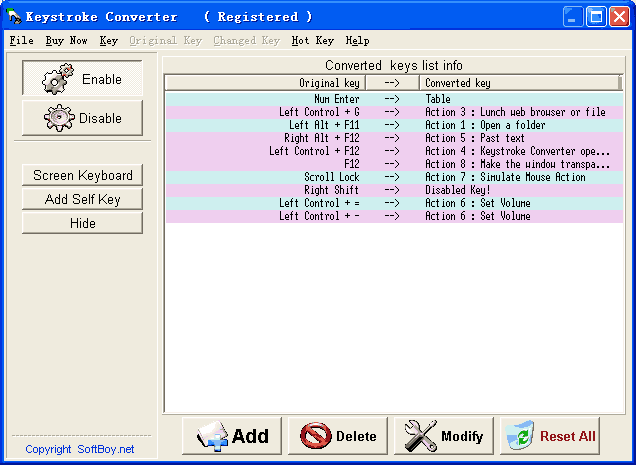
Keystroke Converter is a perfect tool to exchange the keys on the keyboard. With it, you can say goodbye to any keyboard layout you dislike. With it, you can make the broken key function again. With it, you can disable any undesired key. With it, you can change your common 108 keyboard into a multifunctional one without costing much money. The basic functions of Keyboard Transformation are as follows:
1. Change one key for another.
2. Change one key for a sequence of keys.
3. Change a sequence of keys for another sequences.
4. Accomplish text input with one or a sequence of keystrokes.
5. Accomplish Macro with one or a sequence of keystrokes.
6. Disable one or a sequence of keystrokes.
7. Key to Mouse.
8. Control volume from keyboard.
9. One press to lunch web browser or program or special file or folder.
10. Set the windows' transparency.
11. Special character input.
Buy Keystroke Converter Only $44.95
Download Free Trial Version of Keystroke Converter.
Size:1.48 MB. Download and unzip the packaged installer with password 'abc'.
Keystroke Converter free download, Keystroke Converter offical site, change key, replace key on keyboard